
Manage gateways
You have several different options for managing an AI Gateway.
AI Gateway can automatically create a gateway for you. When you use default as a gateway ID and no gateway with that ID exists in your account, AI Gateway creates it on the first authenticated request.
The request that triggers auto-creation must include a valid cf-aig-authorization header. An unauthenticated request to a default gateway that does not yet exist does not create the gateway.
The auto-created default gateway uses the following settings:
| Setting | Default value |
|---|---|
| Authentication | On |
| Log collection | On |
| Caching | Off (TTL of 0) |
| Rate limiting | Off |
After creation, you can edit the default gateway settings like any other gateway. If you delete the default gateway, sending a new authenticated request to the default gateway ID auto-creates it again.
- Log into the Cloudflare dashboard ↗ and select your account.
- Go to AI > AI Gateway.
- Select Create Gateway.
- Enter your Gateway name. Note: Gateway name has a 64 character limit.
- Select Create.
To set up an AI Gateway using the API:
-
Create an API token with the following permissions:
AI Gateway - ReadAI Gateway - Edit
-
Get your Account ID.
-
Using that API token and Account ID, send a
POSTrequest to the Cloudflare API.
To edit an AI Gateway in the dashboard:
- Log into the Cloudflare dashboard ↗ and select your account.
- Go to AI > AI Gateway.
- Select your gateway.
- Go to Settings and update as needed.
To edit an AI Gateway, send a PUT request to the Cloudflare API.
You can configure your gateway to automatically retry failed requests to upstream providers. This is useful when you do not control the client and cannot implement client-side retries or backoff logic.
To configure retry settings:
- Log in to the Cloudflare dashboard ↗ and select your account.
- Go to AI > AI Gateway and select your gateway.
- Go to Settings and find the Retry Requests section.
- Turn on the toggle to turn on automatic retries.
- Configure the following settings:
- Retry count — the maximum number of retry attempts (up to 5).
- Delay — the base delay between retries. Available values: 100ms, 500ms, 1 second, 2 seconds, 3 seconds, or 5 seconds.
- Backoff — the backoff strategy for subsequent retries: Constant, Linear, or Exponential.
- Select Save.
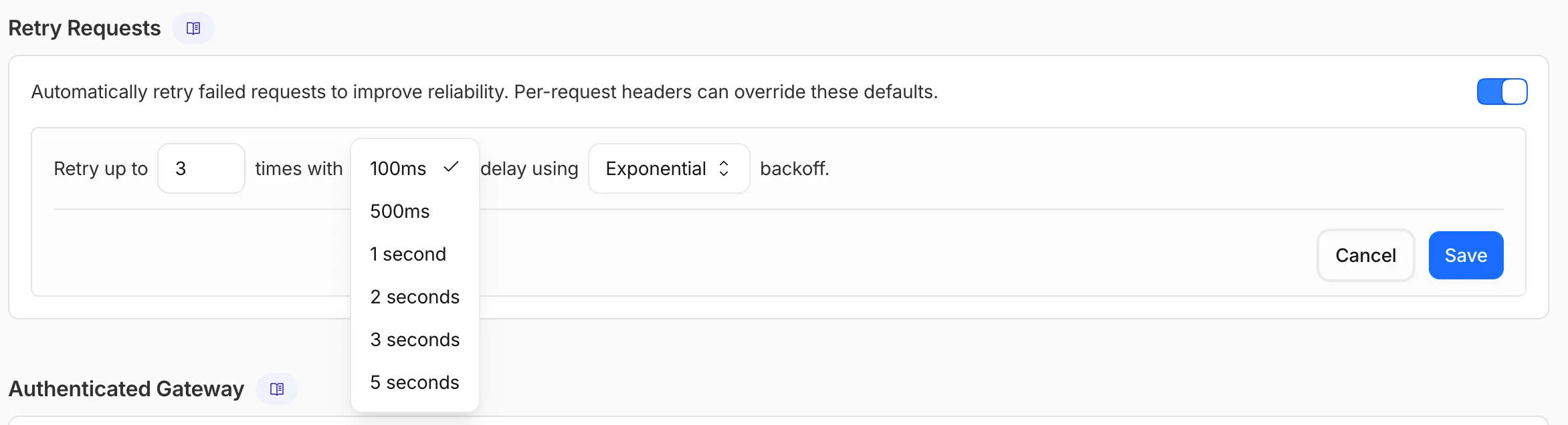
These gateway-level defaults apply to all requests routed through the gateway. Per-request headers can override these defaults — refer to Request handling for details.
For more complex failover scenarios where you need to fail across different providers, refer to Dynamic Routing.
Deleting your gateway is permanent and can not be undone.
To delete an AI Gateway in the dashboard:
- Log into the Cloudflare dashboard ↗ and select your account.
- Go to AI > AI Gateway.
- Select your gateway from the list of available options.
- Go to Settings.
- For Delete Gateway, select Delete (and confirm your deletion).
To delete an AI Gateway, send a DELETE request to the Cloudflare API.