---
title: Cloudflare Version Management
description: By using Version Management, you can:
image: https://developers.cloudflare.com/core-services-preview.png
---
[Skip to content](#%5Ftop)
Was this helpful?
YesNo
[ Edit page ](https://github.com/cloudflare/cloudflare-docs/edit/production/src/content/docs/version-management/index.mdx) [ Report issue ](https://github.com/cloudflare/cloudflare-docs/issues/new/choose)
Copy page
# Cloudflare Version Management
Safely test, deploy, and roll back changes to your zone configurations using Version Management.
Enterprise-only
## Benefits
By using Version Management, you can:
* Create independent versions to make changes with no risk of impacting live traffic.
* Safely deploy changes to staging environments ahead of deploy to production.
* Quickly roll back deployed changes when issues occur.
## Availability
| Free | Pro | Business | Enterprise | |
| ------------ | --- | -------- | ---------- | --- |
| Availability | No | No | No | Yes |
For access, [enable](https://developers.cloudflare.com/version-management/how-to/enable/) Zone Versioning in the Cloudflare dashboard.
## Limitations
Version Management does not currently support or have limited support for the following products or features:
API Shield
* Some [API Shield](https://developers.cloudflare.com/api-shield/) configurations are not cloned when a new zone version is created.
* Customers are allowed to opt-in to remove the UI block that prevents enabling Version Management.
Authenticated Origin Pull
* [Authenticated Origin Pull](https://developers.cloudflare.com/ssl/origin-configuration/authenticated-origin-pull/) does not work with Zone Versioning.
* Accessing your domain from an allowlisted IP returns a Cloudflare 520 error.
Cache
* [Cache Reserve](https://developers.cloudflare.com/cache/advanced-configuration/cache-reserve/) is intended for production use only.
* Purging the production environment purges all environments.
Cache Rules when used with Cloudflare Images
* [Image Resizing](https://developers.cloudflare.com/images/) does not work with the `additional_cacheable_ports` [Cache Rule](https://developers.cloudflare.com/cache/how-to/cache-rules/) setting and Zone Versioning.
* If you use `additional_cacheable_ports` with Image Resizing, the image will be resized every time it is requested and will result in low performance.
Workers Cache API
* [Workers Cache API](https://developers.cloudflare.com/workers/runtime-apis/cache/) does not work with Version Management.
* If you use the Workers Cache API with Zone Versioning, you might encounter unexpected caching behaviours.
China Network
* Regardless of the version deployed to production, traffic in China will always target the root zone.
* Other incompatibility issues with Access and ICP licenses.
Cloudflare API
* Version Management does not currently expose a public [API](https://developers.cloudflare.com/api/).
* Customers can only use Version Management through the [Cloudflare dashboard ↗](https://dash.cloudflare.com/).
Domain-scoped Roles
* [Domain-scoped Roles](https://developers.cloudflare.com/fundamentals/manage-members/roles/#domain-scoped-roles) apply only to your root zone.
* Once a new version is created, these roles do not copy over and they lose access to versions.
Image Transformations
* Changes made to [Image Transformations](https://developers.cloudflare.com/images/transform-images/) are not cloned when a new zone version is created.
Network Error Logging
* [Network Error Logging](https://developers.cloudflare.com/network-error-logging/) configurations are not cloned when a new version is created.
Client-side security
* [Client-side security](https://developers.cloudflare.com/client-side-security/) (formerly known as Page Shield) is not available for versioning and is only configurable under your Global Configuration.
Rules
* Version Management does not currently support the following:
* [Snippets](https://developers.cloudflare.com/rules/snippets/)
* [Compression Rules](https://developers.cloudflare.com/rules/compression-rules/)
Security Insights
* [Security Insights](https://developers.cloudflare.com/security-center/security-insights/) are not shown when Zone Versioning is enabled and the first version is deployed to production.
Terraform
* Version Management does not currently support [Terraform](https://developers.cloudflare.com/terraform/).
* Customers should either use Terraform or Version Management.
WAF Attack Score
* [WAF Attack Score](https://developers.cloudflare.com/waf/detections/attack-score/) configurations are not cloned when a new zone version is created.
Waiting Room
* [Waiting Room](https://developers.cloudflare.com/waiting-room/) users active on the site may be placed back in the queue.
* Waiting Room users in the queue may lose their place in line.
* Traffic may exceed limits.
Wrangler
* If a version has a Worker route, it might disappear when a Worker is deployed via [Wrangler](https://developers.cloudflare.com/workers/wrangler/).
* If two versions have the same custom domains, the Worker might randomly choose between them.
## Requirements
To use Version Management, the following must all be true:
* Your zone is on an Enterprise plan.
* Your zone is in an [active](https://developers.cloudflare.com/dns/zone-setups/reference/domain-status/) state.
* Your zone uses [WAF managed rules](https://developers.cloudflare.com/waf/managed-rules/).
* Your zone has migrated to use [custom rules](https://developers.cloudflare.com/waf/custom-rules/) instead of Firewall Rules (deprecated).
* Your account uses the [new WAF ↗](https://blog.cloudflare.com/new-cloudflare-waf/) (if not, contact your account team).
* Your user account must have a Super Administrator or Administrator [role](https://developers.cloudflare.com/fundamentals/manage-members/roles/). **Zone Versioning** roles cannot create new versions.
* Your user account must have an API Key provisioned (if not, [view your API Key](https://developers.cloudflare.com/fundamentals/api/get-started/keys/#view-your-global-api-key)).
* Your user account must have API Access enabled. Refer to [control API Access](https://developers.cloudflare.com/fundamentals/api/how-to/control-api-access/) for more information.
* You must use the dashboard to manage versioning.
```json
{"@context":"https://schema.org","@type":"BreadcrumbList","itemListElement":[{"@type":"ListItem","position":1,"item":{"@id":"/directory/","name":"Directory"}},{"@type":"ListItem","position":2,"item":{"@id":"/version-management/","name":"Version Management"}}]}
```
---
---
title: About
description: Version Management works through a combination of environments and versions.
image: https://developers.cloudflare.com/core-services-preview.png
---
[Skip to content](#%5Ftop)
Was this helpful?
YesNo
[ Edit page ](https://github.com/cloudflare/cloudflare-docs/edit/production/src/content/docs/version-management/about.mdx) [ Report issue ](https://github.com/cloudflare/cloudflare-docs/issues/new/choose)
Copy page
# About
Version Management works through a combination of **environments** and **versions**.
stateDiagram-v2
V2: Version 2
V22: Version 2
(applied manually)
V23: Version 2
(promoted from Development)
V24: Version 2
(promoted from Staging)
Revert: Production (rollback)
V1: Version 1
(rolled back due to issues)
V2 --> Development
Development --> Staging
Staging --> Production
Production --> Revert
state Development {
V22
}
note right of Development
At each level, test then promote the version.
end note
state Staging {
V23
}
state Production {
V24
}
state Revert {
V1
}
note right of Revert
Once promoted into an environment, a version can be rolled back.
end note
## Environments
An environment is a place to test different versions of your zone configurations.
After you [enable](https://developers.cloudflare.com/version-management/how-to/enable/) version management, you will have the ability to create default environments:
* **Development**: Meant to validate that changes work correctly. The default [traffic filters](https://developers.cloudflare.com/version-management/reference/traffic-filters/) are that the `cf.zone.name` matches your zone name, the `Edge Server IP` is a specific value, and the request contains a cookie with `development=true`.
* **Staging**: Meant to test changes before sending them to **Production**. The default [traffic filters](https://developers.cloudflare.com/version-management/reference/traffic-filters/) are that the `cf.zone.name` matches your zone name and the `Edge Server IP` is a specific value.
* **Production**: Meant to hold all configurations applied to your zone. You cannot edit the [traffic filters](https://developers.cloudflare.com/version-management/reference/traffic-filters/) \- which are just that the `cf.zone.name` is equal to your zone's name - and cannot delete this environment. This environment has a read-only check enabled, so versions promoted to this environment will become read-only as well.
When you [create](https://developers.cloudflare.com/version-management/how-to/versions/#create-version) a new version, that version will be available to apply to your **Development** environment (or whatever environment has the lowest rank). Once you test a version in your **Development** environment, you would promote that version to the **Staging** environment and - with no issues - then promote it to **Production**.
To send traffic to specific environments, send requests to that environment that match the pattern specified in its [traffic filters](https://developers.cloudflare.com/version-management/reference/traffic-filters/).
## Versions
A version is a collection of configurations related to your zone, such as WAF custom rules and [other optimization configurations](https://developers.cloudflare.com/version-management/reference/available-configurations/).
Once you [enable](https://developers.cloudflare.com/version-management/how-to/enable/) Version Management, Cloudflare will automatically create:
* **Version Zero**, think about this as the configuration of your current zone. Once default environments are created, Version Zero is automatically deployed to them, guaranteeing no disruption in your live traffic. This Version is also permanently editable. In case you decide to disable Zone Versioning, Version Zero will become your zone again.
* **Global Configuration**, you can find all the configurations here that are not supported by Version Management.
Important
Any changes made to the **Global Configuration** will immediately apply to your zone and all versions of your zone, affecting live traffic.
On the Environments page, you can create default environments for **Production**, **Staging**, and **Development**.
When your version is ready, you would then test and promote it through various environments until it reaches **Production** (or whatever your final environment is).
You can create a new version at any time by choosing to [**Clone**](https://developers.cloudflare.com/version-management/how-to/versions/#create-version) an existing version, which automatically copies over configurations from an existing version.
Version configurations are applied to zone traffic when you [promote a version](https://developers.cloudflare.com/version-management/how-to/environments/#promote-a-version) to a new environment and then send traffic to that environment that matches the pattern specified in its [traffic filters](https://developers.cloudflare.com/version-management/reference/traffic-filters/).
```json
{"@context":"https://schema.org","@type":"BreadcrumbList","itemListElement":[{"@type":"ListItem","position":1,"item":{"@id":"/directory/","name":"Directory"}},{"@type":"ListItem","position":2,"item":{"@id":"/version-management/","name":"Version Management"}},{"@type":"ListItem","position":3,"item":{"@id":"/version-management/about/","name":"About"}}]}
```
---
---
title: Get started
description: Learn how to enable Version Management in the Cloudflare dashboard.
image: https://developers.cloudflare.com/core-services-preview.png
---
[Skip to content](#%5Ftop)
Was this helpful?
YesNo
[ Edit page ](https://github.com/cloudflare/cloudflare-docs/edit/production/src/content/docs/version-management/get-started.mdx) [ Report issue ](https://github.com/cloudflare/cloudflare-docs/issues/new/choose)
Copy page
# Get started
Follow this tutorial to start testing and deploying zone configuration changes with Version Management.
## Enable versioning
By default, Version Management is not enabled on a zone.
To enable [Version Management ↗](https://dash.cloudflare.com/?to=/:account/:zone/versioning):
1. Log in to the Cloudflare dashboard.
[ Go to **Account home** ](https://dash.cloudflare.com/?to=/:account/home)
2. Select your account and zone.
3. Go to **Version Management**.
4. Select **Enable versioning**.
Note
If you cannot enable Version Management, make sure your zone, account, and user meet the [requirements](https://developers.cloudflare.com/version-management/#requirements).
## (Optional) Create additional environments
Once you [enable](https://developers.cloudflare.com/version-management/how-to/enable/) Version Management, Cloudflare will automatically create:
* **Version Zero**, think about this as the configuration of your current zone. Once default environments are created, Version Zero is automatically deployed to them, guaranteeing no disruption in your live traffic. This Version is also permanently editable. In case you decide to disable Zone Versioning, Version Zero will become your zone again.
* **Global Configuration**, you can find all the configurations here that are not supported by Version Management.
Important
Any changes made to the **Global Configuration** will immediately apply to your zone and all versions of your zone, affecting live traffic.
On the Environments page, you can create default environments for **Production**, **Staging**, and **Development**.
These environments each serve a specific purpose and are accessed differently:
* **Development**: Meant to validate that changes work correctly. The default [traffic filters](https://developers.cloudflare.com/version-management/reference/traffic-filters/) are that the `cf.zone.name` matches your zone name, the `Edge Server IP` is a specific value, and the request contains a cookie with `development=true`.
* **Staging**: Meant to test changes before sending them to **Production**. The default [traffic filters](https://developers.cloudflare.com/version-management/reference/traffic-filters/) are that the `cf.zone.name` matches your zone name and the `Edge Server IP` is a specific value.
* **Production**: Meant to hold all configurations applied to your zone. You cannot edit the [traffic filters](https://developers.cloudflare.com/version-management/reference/traffic-filters/) \- which are just that the `cf.zone.name` is equal to your zone's name - and cannot delete this environment. This environment has a read-only check enabled, so versions promoted to this environment will become read-only as well.
Based on your organization's needs, you may need to create additional environments to test and roll out changes.
For more details, refer to [Create environment](https://developers.cloudflare.com/version-management/how-to/environments/#create-environment).
## Update configurations
Before making changes, make sure you are inside the correct version of your zone.
To change between different versions of your zone:
1. Log in to the Cloudflare dashboard.
[ Go to **Account home** ](https://dash.cloudflare.com/?to=/:account/home)
2. Select your account and a domain that has version management. The Global Configuration of your domain will load.
3. Go to the product or feature you wish to modify.
* **If the product or feature is available for versioning**: The last version you were working on will load.
* **If the product or feature is NOT available for versioning**: Your Global Configuration will load, and any changes you make will impact live traffic.
4. Ensure that the configuration or version displayed in the domain summary bar is the one you would like to work on. If not, select the version in the domain summary bar to open the version switcher.
Note
If you are on a product that is not available for versioning, you will not be able to switch to another version, and can only make changes under your Global Configuration.
The Domain Summary is accessible from all pages and allows you to quickly switch between versions and domains.
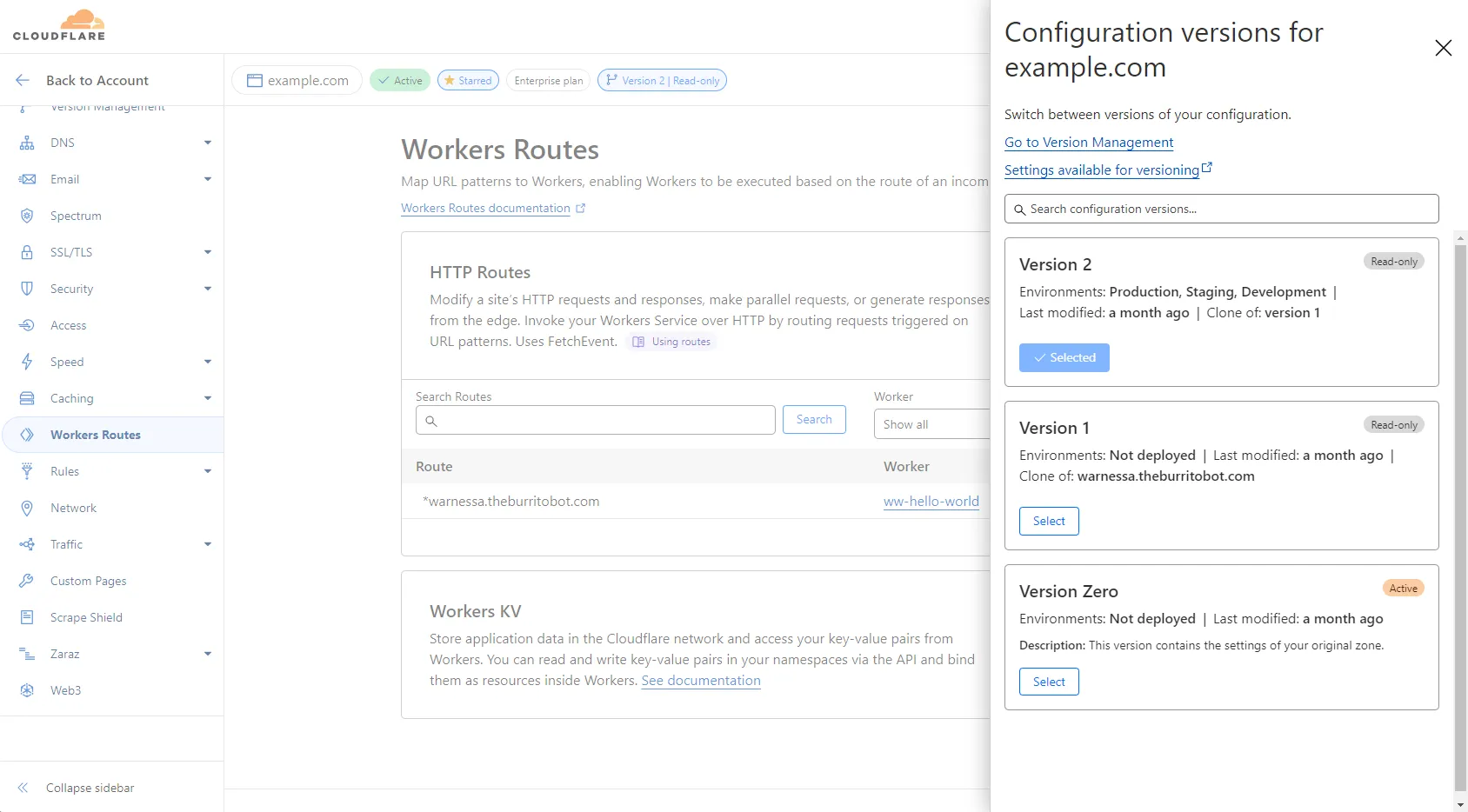
From within a version, you can update configurations just as you would with your normal zone configurations. Any changes are saved automatically.
## Test version
Once you have made changes to a version, apply that version to your lowest-ranked environment.
1. Log in to the Cloudflare dashboard.
[ Go to **Account home** ](https://dash.cloudflare.com/?to=/:account/home)
2. Select your account and zone.
3. Go to **Version Management**.
4. Go to **Environments**.
5. On your lowest-ranked environment, use the **Version** dropdown to select your desired version.
To test your version, send requests to that environment that match the pattern specified in its [traffic filters](https://developers.cloudflare.com/version-management/reference/traffic-filters/).
For more details about what happens to these requests, refer to the version's [metrics](https://developers.cloudflare.com/version-management/how-to/versions/#view-metrics).
## Promote version
Next, [promote](https://developers.cloudflare.com/version-management/how-to/environments/#change-environment-version) your version through your different environments.
To promote a version:
1. Log in to the Cloudflare dashboard.
[ Go to **Account home** ](https://dash.cloudflare.com/?to=/:account/home)
2. Select your account and zone.
3. Go to **Version Management**.
4. Select **Environments**.
5. On the environment in which you tested the version, select **Promote**. This option will only be available if the lower-ranked environment has a different version than the higher-ranked environment.
Promoting a version to a read-only environment will make the version permanently read-only.
After promoting to each environment, test the new version in your new environment.
## Repeat
For new changes to your zone, [create a new version](https://developers.cloudflare.com/version-management/how-to/versions/#create-version) and repeat this process.
## Delete specific version
The versions created in Version Management are immutable and cannot be deleted to ensure that changes are tracked and can be rolled back if needed.
You can, however, create a new version and clone the configuration from the previous version, making any necessary changes before promoting it to your desired environment. This solution allows you to effectively "delete" the old version by no longer using it.
```json
{"@context":"https://schema.org","@type":"BreadcrumbList","itemListElement":[{"@type":"ListItem","position":1,"item":{"@id":"/directory/","name":"Directory"}},{"@type":"ListItem","position":2,"item":{"@id":"/version-management/","name":"Version Management"}},{"@type":"ListItem","position":3,"item":{"@id":"/version-management/get-started/","name":"Get started"}}]}
```
---
---
title: Changelog
description: Subscribe to RSS
image: https://developers.cloudflare.com/core-services-preview.png
---
[Skip to content](#%5Ftop)
Was this helpful?
YesNo
[ Edit page ](https://github.com/cloudflare/cloudflare-docs/edit/production/src/content/docs/version-management/changelog.mdx) [ Report issue ](https://github.com/cloudflare/cloudflare-docs/issues/new/choose)
Copy page
# Changelog
[ Subscribe to RSS ](https://developers.cloudflare.com/version-management/changelog/index.xml)
## 2024-02-26
**Support for API Shield**
* [API Shield](https://developers.cloudflare.com/api-shield/) no longer prevents Version Management enablement and zone settings configurations.
## 2023-09-20
**Support for Bot Management**
* Version Management now supports versioning for [Bot Management](https://developers.cloudflare.com/bots/plans/bm-subscription/).
```json
{"@context":"https://schema.org","@type":"BreadcrumbList","itemListElement":[{"@type":"ListItem","position":1,"item":{"@id":"/directory/","name":"Directory"}},{"@type":"ListItem","position":2,"item":{"@id":"/version-management/","name":"Version Management"}},{"@type":"ListItem","position":3,"item":{"@id":"/version-management/changelog/","name":"Changelog"}}]}
```
---
---
title: Compare versions
description: Quickly view differences between versions to make sure your configurations are correct before promoting a version to a new environment.
image: https://developers.cloudflare.com/core-services-preview.png
---
[Skip to content](#%5Ftop)
Was this helpful?
YesNo
[ Edit page ](https://github.com/cloudflare/cloudflare-docs/edit/production/src/content/docs/version-management/how-to/compare-versions.mdx) [ Report issue ](https://github.com/cloudflare/cloudflare-docs/issues/new/choose)
Copy page
# Compare versions
Quickly view differences between versions to make sure your configurations are correct before [promoting a version](https://developers.cloudflare.com/version-management/how-to/environments/#change-environment-version) to a new environment.
A common use case would be to compare the versions in staging and production to verify the changes before promoting the staging version to production.
To compare versions:
1. Log in to the Cloudflare dashboard.
[ Go to **Account home** ](https://dash.cloudflare.com/?to=/:account/home)
2. Select your account and zone.
3. Go to **Version Management** \> **Comparisons**.
4. Select two different versions.
5. Select **Compare**.
After a few seconds, the page will update automatically with a comparison on a per-product basis. The lower numbered version will always be presented on the left and the top will show you which environments the versions are assigned to so that you can ensure you are comparing the right versions.
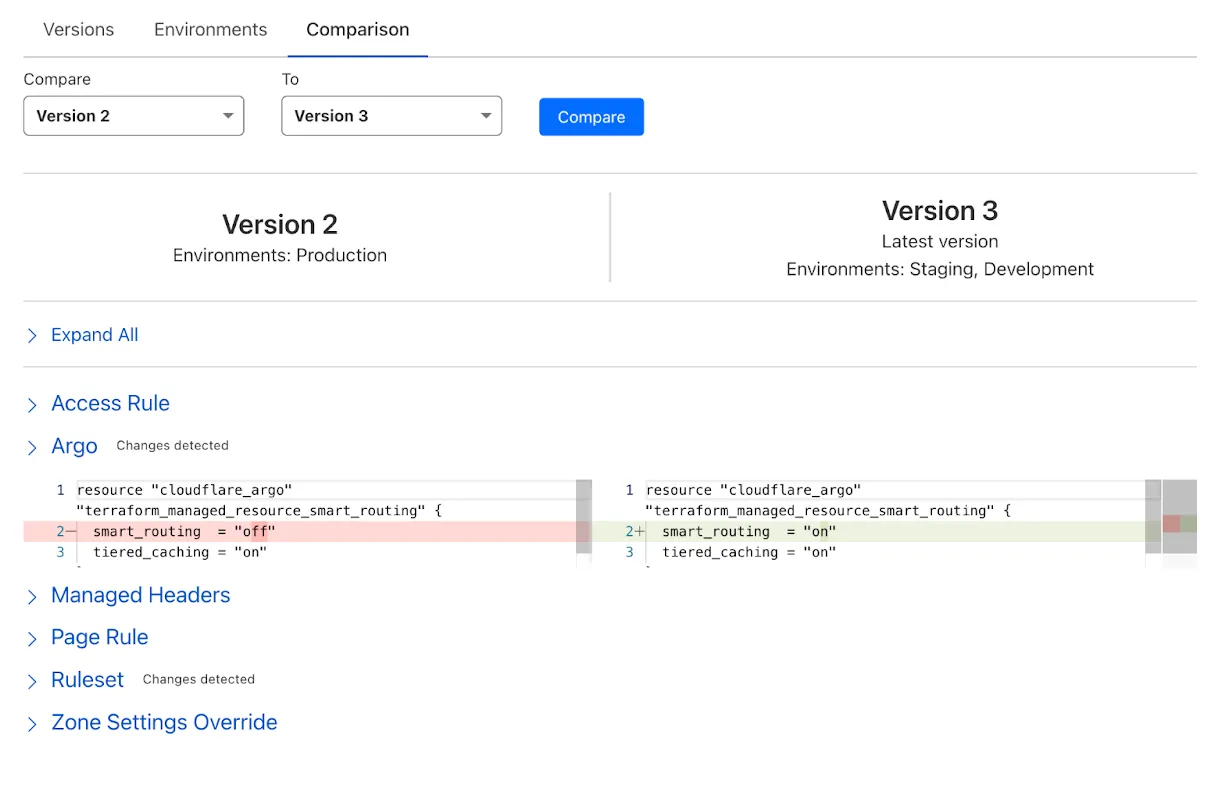
Changes will be highlighted for new additions and removals for that service. Based on the comparison, you can then decide if more changes are necessary or if that new version is ready to be rolled out.
```json
{"@context":"https://schema.org","@type":"BreadcrumbList","itemListElement":[{"@type":"ListItem","position":1,"item":{"@id":"/directory/","name":"Directory"}},{"@type":"ListItem","position":2,"item":{"@id":"/version-management/","name":"Version Management"}},{"@type":"ListItem","position":3,"item":{"@id":"/version-management/how-to/","name":"How to"}},{"@type":"ListItem","position":4,"item":{"@id":"/version-management/how-to/compare-versions/","name":"Compare versions"}}]}
```
---
---
title: Enable
description: By default, Version Management is not enabled on a zone.
image: https://developers.cloudflare.com/core-services-preview.png
---
[Skip to content](#%5Ftop)
Was this helpful?
YesNo
[ Edit page ](https://github.com/cloudflare/cloudflare-docs/edit/production/src/content/docs/version-management/how-to/enable.mdx) [ Report issue ](https://github.com/cloudflare/cloudflare-docs/issues/new/choose)
Copy page
# Enable
By default, Version Management is not enabled on a zone.
To enable [Version Management ↗](https://dash.cloudflare.com/?to=/:account/:zone/versioning):
1. Log in to the Cloudflare dashboard.
[ Go to **Account home** ](https://dash.cloudflare.com/?to=/:account/home)
2. Select your account and zone.
3. Go to **Version Management**.
4. Select **Enable versioning**.
Note
If you cannot enable Version Management, make sure your zone, account, and user meet the [requirements](https://developers.cloudflare.com/version-management/#requirements).
Once you [enable](https://developers.cloudflare.com/version-management/how-to/enable/) Version Management, Cloudflare will automatically create:
* **Version Zero**, think about this as the configuration of your current zone. Once default environments are created, Version Zero is automatically deployed to them, guaranteeing no disruption in your live traffic. This Version is also permanently editable. In case you decide to disable Zone Versioning, Version Zero will become your zone again.
* **Global Configuration**, you can find all the configurations here that are not supported by Version Management.
Important
Any changes made to the **Global Configuration** will immediately apply to your zone and all versions of your zone, affecting live traffic.
On the Environments page, you can create default environments for **Production**, **Staging**, and **Development**.
## Disable Version Management
Warning
When you disable Zone Versioning, all your zone configurations will revert to those in your **Version Zero**.
When deleting the production environment, all traffic will default to Version 0\. The action of deleting an environment does not impact any versions configuration.
To disable Zone Versioning:
1. Confirm that **Version Zero** has the correct configurations for your zone:
1. Use the [comparison feature](https://developers.cloudflare.com/version-management/how-to/compare-versions/) to view the differences between your current **Production** version and **Version Zero**.
2. If there are differences, make changes to **Version Zero** so it matches your current **Production** version.
3. [Promote](https://developers.cloudflare.com/version-management/how-to/environments/#promote-a-version) **Version Zero** to your **Production** environment.
4. Confirm that your new **Production** environment functions as expected.
2. Send a `GET` request to the `/zones/{zone_id}/environments` endpoint.
Terminal window
```
curl "https://api.cloudflare.com/client/v4/zones/{zone_id}/environments" \
--header "X-Auth-Email: " \
--header "X-Auth-Key: "
```
In the response, save the following values:
* The environment `ref` of every rule
3. Using the `ref` of those environments, send a `DELETE` request to the `/zones/{zone_id}/environments/{ref}` endpoint for each environment.
Terminal window
```
curl --request DELETE \
"https://api.cloudflare.com/client/v4/zones/{zone_id}/environments/{ref}" \
--header "X-Auth-Email: " \
--header "X-Auth-Key: "
```
4. Then, send a `GET` request to find all HTTP applications (or versions of your zone).
Terminal window
```
curl "https://api.cloudflare.com/client/v4/zones/{zone_id}/http_applications" \
--header "X-Auth-Email: " \
--header "X-Auth-Key: "
```
Save the `id` of each HTTP application.
5. Using the `id` of those HTTP applications, send `DELETE` requests for every application.
Terminal window
```
curl --request DELETE \
"https://api.cloudflare.com/client/v4/zones/{zone_id}/http_applications/{http_application_id}" \
--header "X-Auth-Email: " \
--header "X-Auth-Key: "
```
Once all these steps are completed, Zone Versioning will go back to its original landing page.
```json
{"@context":"https://schema.org","@type":"BreadcrumbList","itemListElement":[{"@type":"ListItem","position":1,"item":{"@id":"/directory/","name":"Directory"}},{"@type":"ListItem","position":2,"item":{"@id":"/version-management/","name":"Version Management"}},{"@type":"ListItem","position":3,"item":{"@id":"/version-management/how-to/","name":"How to"}},{"@type":"ListItem","position":4,"item":{"@id":"/version-management/how-to/enable/","name":"Enable"}}]}
```
---
---
title: Manage environments
description: An environment is a place to test different versions of your zone configurations.
image: https://developers.cloudflare.com/core-services-preview.png
---
[Skip to content](#%5Ftop)
Was this helpful?
YesNo
[ Edit page ](https://github.com/cloudflare/cloudflare-docs/edit/production/src/content/docs/version-management/how-to/environments.mdx) [ Report issue ](https://github.com/cloudflare/cloudflare-docs/issues/new/choose)
Copy page
# Manage environments
An environment is a place to test different versions of your zone configurations.
---
## Create environment
Once you [enable](https://developers.cloudflare.com/version-management/how-to/enable/) Version Management, Cloudflare will automatically create:
* **Version Zero**, think about this as the configuration of your current zone. Once default environments are created, Version Zero is automatically deployed to them, guaranteeing no disruption in your live traffic. This Version is also permanently editable. In case you decide to disable Zone Versioning, Version Zero will become your zone again.
* **Global Configuration**, you can find all the configurations here that are not supported by Version Management.
Important
Any changes made to the **Global Configuration** will immediately apply to your zone and all versions of your zone, affecting live traffic.
On the Environments page, you can create default environments for **Production**, **Staging**, and **Development**.
Based on your organization's needs, you may need to create additional environments to test and roll out changes.
To create a new environment:
1. In the Cloudflare dashboard, go to the **Account home** page and select your account and zone.
[ Go to **Account home** ](https://dash.cloudflare.com/?to=/:account/home)
2. Go to **Version Management**.
3. Go to **Environments**.
4. Select **Create Environment**.
5. Provide the following information:
* **Environment Name**: A unique, descriptive name for the environment.
* [**Traffic filter**](https://developers.cloudflare.com/version-management/reference/traffic-filters/): Limits which requests are sent to this environment.
* **Initial position**: Controls where this environment should be in your testing process.
1. Select **Create**.
Note
You can only adjust the [**Read-only Environment**](https://developers.cloudflare.com/version-management/reference/read-only-environments/) configuration after an environment has been created.
---
## Edit environment
To edit an environment:
1. In the Cloudflare dashboard, go to the **Account home** page and select your account and zone.
[ Go to **Account home** ](https://dash.cloudflare.com/?to=/:account/home)
2. Go to **Version Management**.
3. Select **Environments**.
4. On a specific environment, select **Edit**.
5. Make any required changes.
6. Select **Save**.
---
## Change environment version
To prevent accidental changes, you can only update an environment's version through the process of **Promotion** or **Roll back**.
For more details on the flow of versions and environments, refer to [How it works](https://developers.cloudflare.com/version-management/about/).
### Promote a version
Promotion moves a version from a lower-ranked environment to the next highest one.
To promote a version:
1. Log in to the Cloudflare dashboard.
[ Go to **Account home** ](https://dash.cloudflare.com/?to=/:account/home)
2. Select your account and zone.
3. Go to **Version Management**.
4. Select **Environments**.
5. On the environment in which you tested the version, select **Promote**. This option will only be available if the lower-ranked environment has a different version than the higher-ranked environment.
Promoting a version to a read-only environment will make the version permanently read-only.
### Roll back a version
When you roll back a version, you revert the environment to the previous version assigned to it.
To roll back a version:
1. In the Cloudflare dashboard, go to the **Account home** page and select your account and zone.
[ Go to **Account home** ](https://dash.cloudflare.com/?to=/:account/home)
2. Go to **Version Management**.
3. Select **Environments**.
4. On a specific environment, select **Roll back**.
---
## Delete environment
To delete an environment:
1. In the Cloudflare dashboard, go to the **Account home** page and select your account and zone.
[ Go to **Account home** ](https://dash.cloudflare.com/?to=/:account/home)
2. Go to **Version Management**.
3. Select **Environments**.
4. On a specific environment, select **Edit**.
5. Select **Delete Environment**.
Note
You cannot delete your **Production** environment.
```json
{"@context":"https://schema.org","@type":"BreadcrumbList","itemListElement":[{"@type":"ListItem","position":1,"item":{"@id":"/directory/","name":"Directory"}},{"@type":"ListItem","position":2,"item":{"@id":"/version-management/","name":"Version Management"}},{"@type":"ListItem","position":3,"item":{"@id":"/version-management/how-to/","name":"How to"}},{"@type":"ListItem","position":4,"item":{"@id":"/version-management/how-to/environments/","name":"Manage environments"}}]}
```
---
---
title: Manage versions
description: A version is a collection of configurations related to your zone, such as WAF custom rules and other optimization configurations.
image: https://developers.cloudflare.com/core-services-preview.png
---
[Skip to content](#%5Ftop)
Was this helpful?
YesNo
[ Edit page ](https://github.com/cloudflare/cloudflare-docs/edit/production/src/content/docs/version-management/how-to/versions.mdx) [ Report issue ](https://github.com/cloudflare/cloudflare-docs/issues/new/choose)
Copy page
# Manage versions
A version is a collection of configurations related to your zone, such as WAF custom rules and [other optimization configurations](https://developers.cloudflare.com/version-management/reference/available-configurations/).
---
## Create version
Once you [enable](https://developers.cloudflare.com/version-management/how-to/enable/) Version Management, Cloudflare will automatically create:
* **Version Zero**, think about this as the configuration of your current zone. Once default environments are created, Version Zero is automatically deployed to them, guaranteeing no disruption in your live traffic. This Version is also permanently editable. In case you decide to disable Zone Versioning, Version Zero will become your zone again.
* **Global Configuration**, you can find all the configurations here that are not supported by Version Management.
Important
Any changes made to the **Global Configuration** will immediately apply to your zone and all versions of your zone, affecting live traffic.
On the Environments page, you can create default environments for **Production**, **Staging**, and **Development**.
If you need to test out different implementations of configurations at the same time or multiple types of changes, create a new version of your zone.**Zone Versioning** roles are not adequate for creating a new version. A **Super Administrator** or **Administrator** role is required.
To create a new version:
1. In the Cloudflare dashboard, go to the **Account home** page and select your account and zone.
[ Go to **Account home** ](https://dash.cloudflare.com/?to=/:account/home)
2. Go to **Version Management**.
3. On an existing version, select **Clone**. This will copy over all configurations from that version.
4. If needed, you can also **Edit Description** to provide more detail about the purpose of this version.
---
## Change configurations in a version
Your zone configurations are split up into two areas: **Global Configuration** and different versions.
* Global Configuration controls the configurations of a zone that is not available for versioning and, when changed, automatically apply to all versions of your zone.
* Version configurations update configurations of a zone that is available for versioning and are:
* Editable when not applied to a [read-only environment](https://developers.cloudflare.com/version-management/reference/read-only-environments/).
* Applied when [associated with an environment](https://developers.cloudflare.com/version-management/how-to/environments/#change-environment-version).
Note
To use the API for a different version, you will need to use a different zone ID.
### Editable versions
Before making changes, make sure you are inside the correct version of your zone.
To change between different versions of your zone:
1. Log in to the Cloudflare dashboard.
[ Go to **Account home** ](https://dash.cloudflare.com/?to=/:account/home)
2. Select your account and a domain that has version management. The Global Configuration of your domain will load.
3. Go to the product or feature you wish to modify.
* **If the product or feature is available for versioning**: The last version you were working on will load.
* **If the product or feature is NOT available for versioning**: Your Global Configuration will load, and any changes you make will impact live traffic.
4. Ensure that the configuration or version displayed in the domain summary bar is the one you would like to work on. If not, select the version in the domain summary bar to open the version switcher.
Note
If you are on a product that is not available for versioning, you will not be able to switch to another version, and can only make changes under your Global Configuration.
The Domain Summary is accessible from all pages and allows you to quickly switch between versions and domains.

From within a version, you can update configurations just as you would with your normal zone configurations. Any changes are saved automatically.
Note
To change the version associated with an environment, you need to update configurations on the [Environment](https://developers.cloudflare.com/version-management/how-to/environments/#change-environment-version) itself.
### Read-only versions
**Production** is a read-only environment by default. This means that any version associated with **Production** also becomes read-only. This configuration prevents another member of your account from accidentally editing the version associated with your live traffic. You can change this configuration by editing the environment.
In order to change configurations in a version associated with a [read-only environment](https://developers.cloudflare.com/version-management/reference/read-only-environments/), either:
* [Change the environment version](https://developers.cloudflare.com/version-management/how-to/environments/#change-environment-version) to another version and then make changes to your version.
* [Edit](https://developers.cloudflare.com/version-management/how-to/environments/#edit-environment) the environment's configurations to remove the **Read-only environment** configuration. Then, promote a new version to this environment.
---
## View metrics
Once you begin [sending traffic](https://developers.cloudflare.com/version-management/reference/traffic-filters/) to an environment with a version applied, you can also view metrics about what happens to that traffic.
To view metrics:
1. In the Cloudflare dashboard, go to the **Account home** page and select your account and zone.
[ Go to **Account home** ](https://dash.cloudflare.com/?to=/:account/home)
2. Go to **Version Management**.
3. On an existing version, select **View Metrics**.
Note
You will only see metrics for the specific version that is active in the Cloudflare dashboard during the time frame that you select.
```json
{"@context":"https://schema.org","@type":"BreadcrumbList","itemListElement":[{"@type":"ListItem","position":1,"item":{"@id":"/directory/","name":"Directory"}},{"@type":"ListItem","position":2,"item":{"@id":"/version-management/","name":"Version Management"}},{"@type":"ListItem","position":3,"item":{"@id":"/version-management/how-to/","name":"How to"}},{"@type":"ListItem","position":4,"item":{"@id":"/version-management/how-to/versions/","name":"Manage versions"}}]}
```
---
---
title: Available configurations
description: When you use Version Management, you can edit various configurations, such as WAF custom rules and Cache.
image: https://developers.cloudflare.com/core-services-preview.png
---
[Skip to content](#%5Ftop)
Was this helpful?
YesNo
[ Edit page ](https://github.com/cloudflare/cloudflare-docs/edit/production/src/content/docs/version-management/reference/available-configurations.mdx) [ Report issue ](https://github.com/cloudflare/cloudflare-docs/issues/new/choose)
Copy page
# Available configurations
When you use Version Management, you can edit various configurations, such as [WAF custom rules](https://developers.cloudflare.com/waf/custom-rules/) and [Cache](https://developers.cloudflare.com/cache/).
Generally, you are allowed to edit all zone-level configurations except for the following:
* [DNS](https://developers.cloudflare.com/dns/)
* [Spectrum](https://developers.cloudflare.com/spectrum/)
* Traffic ([Load Balancing](https://developers.cloudflare.com/load-balancing/), [Waiting Rooms](https://developers.cloudflare.com/waiting-room/), Health Checks, and more)
* [Zero Trust](https://developers.cloudflare.com/cloudflare-one/) and Access policies
* [SSL certificates](https://developers.cloudflare.com/ssl/edge-certificates/) (though you can test these with a separate [staging certificates](https://developers.cloudflare.com/ssl/edge-certificates/staging-environment/) feature)
Note
For the most up-to-date list of these configurations, start [editing configurations within a version](https://developers.cloudflare.com/version-management/how-to/versions/#change-configurations-in-a-version) in the Cloudflare dashboard.
## Limitations
Version Management does not currently support or have limited support for the following products or features:
API Shield
* Some [API Shield](https://developers.cloudflare.com/api-shield/) configurations are not cloned when a new zone version is created.
* Customers are allowed to opt-in to remove the UI block that prevents enabling Version Management.
Authenticated Origin Pull
* [Authenticated Origin Pull](https://developers.cloudflare.com/ssl/origin-configuration/authenticated-origin-pull/) does not work with Zone Versioning.
* Accessing your domain from an allowlisted IP returns a Cloudflare 520 error.
Cache
* [Cache Reserve](https://developers.cloudflare.com/cache/advanced-configuration/cache-reserve/) is intended for production use only.
* Purging the production environment purges all environments.
Cache Rules when used with Cloudflare Images
* [Image Resizing](https://developers.cloudflare.com/images/) does not work with the `additional_cacheable_ports` [Cache Rule](https://developers.cloudflare.com/cache/how-to/cache-rules/) setting and Zone Versioning.
* If you use `additional_cacheable_ports` with Image Resizing, the image will be resized every time it is requested and will result in low performance.
Workers Cache API
* [Workers Cache API](https://developers.cloudflare.com/workers/runtime-apis/cache/) does not work with Version Management.
* If you use the Workers Cache API with Zone Versioning, you might encounter unexpected caching behaviours.
China Network
* Regardless of the version deployed to production, traffic in China will always target the root zone.
* Other incompatibility issues with Access and ICP licenses.
Cloudflare API
* Version Management does not currently expose a public [API](https://developers.cloudflare.com/api/).
* Customers can only use Version Management through the [Cloudflare dashboard ↗](https://dash.cloudflare.com/).
Domain-scoped Roles
* [Domain-scoped Roles](https://developers.cloudflare.com/fundamentals/manage-members/roles/#domain-scoped-roles) apply only to your root zone.
* Once a new version is created, these roles do not copy over and they lose access to versions.
Image Transformations
* Changes made to [Image Transformations](https://developers.cloudflare.com/images/transform-images/) are not cloned when a new zone version is created.
Network Error Logging
* [Network Error Logging](https://developers.cloudflare.com/network-error-logging/) configurations are not cloned when a new version is created.
Client-side security
* [Client-side security](https://developers.cloudflare.com/client-side-security/) (formerly known as Page Shield) is not available for versioning and is only configurable under your Global Configuration.
Rules
* Version Management does not currently support the following:
* [Snippets](https://developers.cloudflare.com/rules/snippets/)
* [Compression Rules](https://developers.cloudflare.com/rules/compression-rules/)
Security Insights
* [Security Insights](https://developers.cloudflare.com/security-center/security-insights/) are not shown when Zone Versioning is enabled and the first version is deployed to production.
Terraform
* Version Management does not currently support [Terraform](https://developers.cloudflare.com/terraform/).
* Customers should either use Terraform or Version Management.
WAF Attack Score
* [WAF Attack Score](https://developers.cloudflare.com/waf/detections/attack-score/) configurations are not cloned when a new zone version is created.
Waiting Room
* [Waiting Room](https://developers.cloudflare.com/waiting-room/) users active on the site may be placed back in the queue.
* Waiting Room users in the queue may lose their place in line.
* Traffic may exceed limits.
Wrangler
* If a version has a Worker route, it might disappear when a Worker is deployed via [Wrangler](https://developers.cloudflare.com/workers/wrangler/).
* If two versions have the same custom domains, the Worker might randomly choose between them.
```json
{"@context":"https://schema.org","@type":"BreadcrumbList","itemListElement":[{"@type":"ListItem","position":1,"item":{"@id":"/directory/","name":"Directory"}},{"@type":"ListItem","position":2,"item":{"@id":"/version-management/","name":"Version Management"}},{"@type":"ListItem","position":3,"item":{"@id":"/version-management/reference/","name":"Reference"}},{"@type":"ListItem","position":4,"item":{"@id":"/version-management/reference/available-configurations/","name":"Available configurations"}}]}
```
---
---
title: Read-only environments
description: When an environment is read-only, versions deployed to this environment will permanently become read-only. This configuration protects sensitive environments from accidental changes.
image: https://developers.cloudflare.com/core-services-preview.png
---
[Skip to content](#%5Ftop)
Was this helpful?
YesNo
[ Edit page ](https://github.com/cloudflare/cloudflare-docs/edit/production/src/content/docs/version-management/reference/read-only-environments.mdx) [ Report issue ](https://github.com/cloudflare/cloudflare-docs/issues/new/choose)
Copy page
# Read-only environments
When an environment is read-only, versions deployed to this environment will permanently become read-only. This configuration protects sensitive environments from accidental changes.
**Version Zero** is an exception to this rule and is always editable.
**Production** is a read-only environment by default. This means that any version associated with **Production** also becomes read-only. This configuration prevents another member of your account from accidentally editing the version associated with your live traffic. You can change this configuration by editing the environment.
For similar reasons, some organizations may make **Staging** a read-only environment. Otherwise, another member of your account could make changes to a version in **Staging** _after_ your organization has performed the validation tests prior to promoting to **Production**. Without having a read-only **Staging** environment, this change could be released into **Production** without testing and might cause an issue with live traffic.
To change the read-only status of an environment, [edit the environment](https://developers.cloudflare.com/version-management/how-to/environments/#edit-environment).
```json
{"@context":"https://schema.org","@type":"BreadcrumbList","itemListElement":[{"@type":"ListItem","position":1,"item":{"@id":"/directory/","name":"Directory"}},{"@type":"ListItem","position":2,"item":{"@id":"/version-management/","name":"Version Management"}},{"@type":"ListItem","position":3,"item":{"@id":"/version-management/reference/","name":"Reference"}},{"@type":"ListItem","position":4,"item":{"@id":"/version-management/reference/read-only-environments/","name":"Read-only environments"}}]}
```
---
---
title: Traffic filters
description: When you create an environment, you specify a traffic filter for that environment. This filter ensures that all traffic reaching the environment and, by extension, the configuration changes associated with the environment's version is intentional.
image: https://developers.cloudflare.com/core-services-preview.png
---
[Skip to content](#%5Ftop)
Was this helpful?
YesNo
[ Edit page ](https://github.com/cloudflare/cloudflare-docs/edit/production/src/content/docs/version-management/reference/traffic-filters.mdx) [ Report issue ](https://github.com/cloudflare/cloudflare-docs/issues/new/choose)
Copy page
# Traffic filters
When you [create an environment](https://developers.cloudflare.com/version-management/how-to/environments/#create-environment), you specify a traffic filter for that environment. This filter ensures that all traffic reaching the environment and, by extension, the configuration changes associated with the environment's version is intentional.
To send traffic to a specific environment, send requests to your zone that match the pattern specified in your filter. These could be characteristics such as **Edge Server IP**, **Cookie**, **Hostname**, or **User Agent**.
To make sure requests are reaching an environment, review the [Metrics](https://developers.cloudflare.com/version-management/how-to/versions/#view-metrics) associated with your environment. These metrics will also help you evaluate whether your configuration changes are affecting traffic in the way you expect.
```json
{"@context":"https://schema.org","@type":"BreadcrumbList","itemListElement":[{"@type":"ListItem","position":1,"item":{"@id":"/directory/","name":"Directory"}},{"@type":"ListItem","position":2,"item":{"@id":"/version-management/","name":"Version Management"}},{"@type":"ListItem","position":3,"item":{"@id":"/version-management/reference/","name":"Reference"}},{"@type":"ListItem","position":4,"item":{"@id":"/version-management/reference/traffic-filters/","name":"Traffic filters"}}]}
```