
Precursor
Precursor is a client-side, session-based verification system that continuously evaluates a visitor's behavior over time. Instead of relying on a single challenge event, Precursor runs ongoing verification in the browser to detect automation that appears legitimate in individual requests but exhibits non-human patterns across a session.
Precursor operates as a continuous client-side verification loop:
- A client-side script is injected into the page
- The script continuously collects signals and performs verification
- Each execution produces signals that are evaluated by Cloudflare
- Results are used to update session state stored in the
cf_clearancecookie - The process repeats throughout the session
This enables Cloudflare to continuously evaluate session behavior over time.
Enable Precursor for your zone:
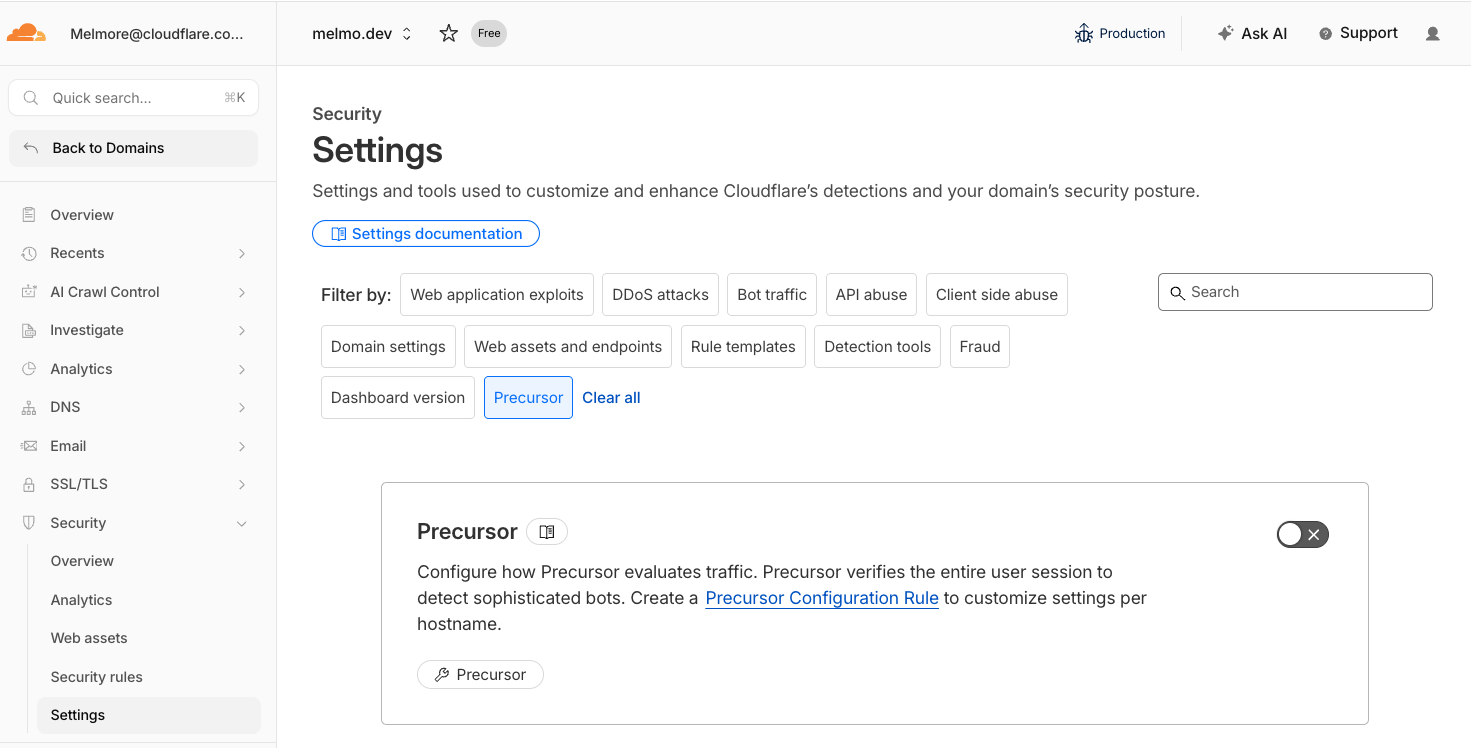
- In the Cloudflare dashboard, select your zone.
- Go to Security > Settings.
- Locate Precursor.
- Turn on Precursor.
-
Choose a mode: To fully verify a user session, visitors may need to complete a lightweight Challenge to establish a valid session. Precursor provides two modes depending on whether you want to prioritize user experience or strict verification:
-
Minimize Friction (default) Does not show an interstitial Challenge to the visitor. Instead, Precursor attempts to establish session state in the background. This provides a smoother user experience, but cannot guarantee that every session is fully verified.
-
Maximize Security (recommended) Shows a lightweight interstitial Challenge to establish a valid session if one does not already exist. This ensures every session is verified before a user can proceed, but may introduce additional friction.
-
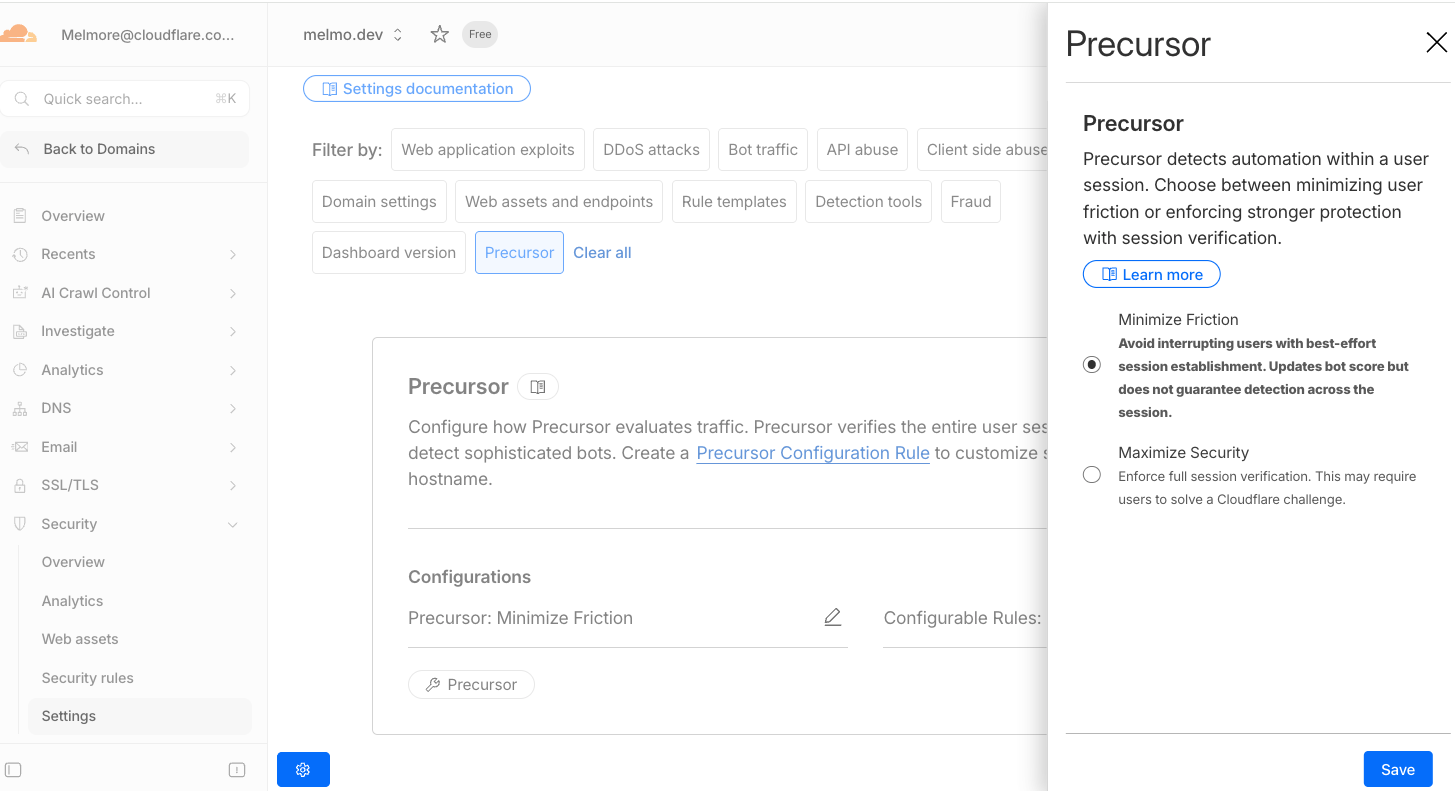
For most customers, selecting a mode is the only configuration required.
Precursor runs across your zone by default. Precursor Rules do not enable or disable Precursor — they determine which mode applies to each request.
For example:
- Run Minimize Friction across your site, but run Maximize Security to enforce a valid session on
/checkout. - Run Maximize Security on all pages, except your homepage.
If your zone serves both browser pages and API endpoints, use Precursor Rules to scope where strict enforcement applies.
When Precursor is set to Maximize Security, requests must present a valid cf_clearance cookie. This can affect:
- API endpoints called by non-browser clients (for example,
curl, mobile backends, server-to-server jobs) - Browser API calls that do not send cookies
For mixed HTML/API traffic, use one of these patterns:
- Start with Minimize Friction globally, then apply Maximize Security only to sensitive pages or paths with Precursor Rules.
- Start with Maximize Security globally, then add Minimize Friction Precursor Rules for API hostnames or API paths.
For browser XHR/fetch requests that must access endpoints under Maximize Security, ensure cookies are included:
fetch("/api/search", { credentials: "include",});axios.get("/api/search", { withCredentials: true,});Use Minimize Friction on endpoints that should not require challenge-style session enforcement. Precursor still evaluates session behavior and can continue contributing detection signals and bot score context.
Precursor supersedes JavaScript Detections (JSD):
- moves from one-time execution to continuous verification
- introduces session-based state
- enables dynamic runtime control
If you enable Precursor, you should disable JavaScript Detections (JSD).
Precursor and Challenges serve different roles:
- Challenges provide point-in-time verification
- Precursor provides continuous, session-level verification
Precursor does not replace Challenges. Instead, it strengthens them by:
- determining when additional Challenges should be required
- re-evaluating visitors after they have already passed a Challenge
- identifying automation that emerges over time
Precursor is tightly integrated with cf_clearance. When running Precursor:
- effective clearance may be reduced or invalidated
- additional Challenges may be triggered
- the visitor may be re-verified during the same session
Once Precursor runs on a zone, its detections appear in the zone's Analytics view. To open it, select your zone in the Cloudflare dashboard, then go to Security > Analytics > Traffic > Bot analysis. The bot score distribution and WAF rule-match counts now include Precursor's behavioral and biometric detections.
For more information, refer to Security Analytics.